
Smart Home & Security / Guide
Video Doorbell Privacy Zones and Motion Zones Explained
Learn which doorbell camera settings mask part of the image and which ones change motion alerts before relying on either feature.
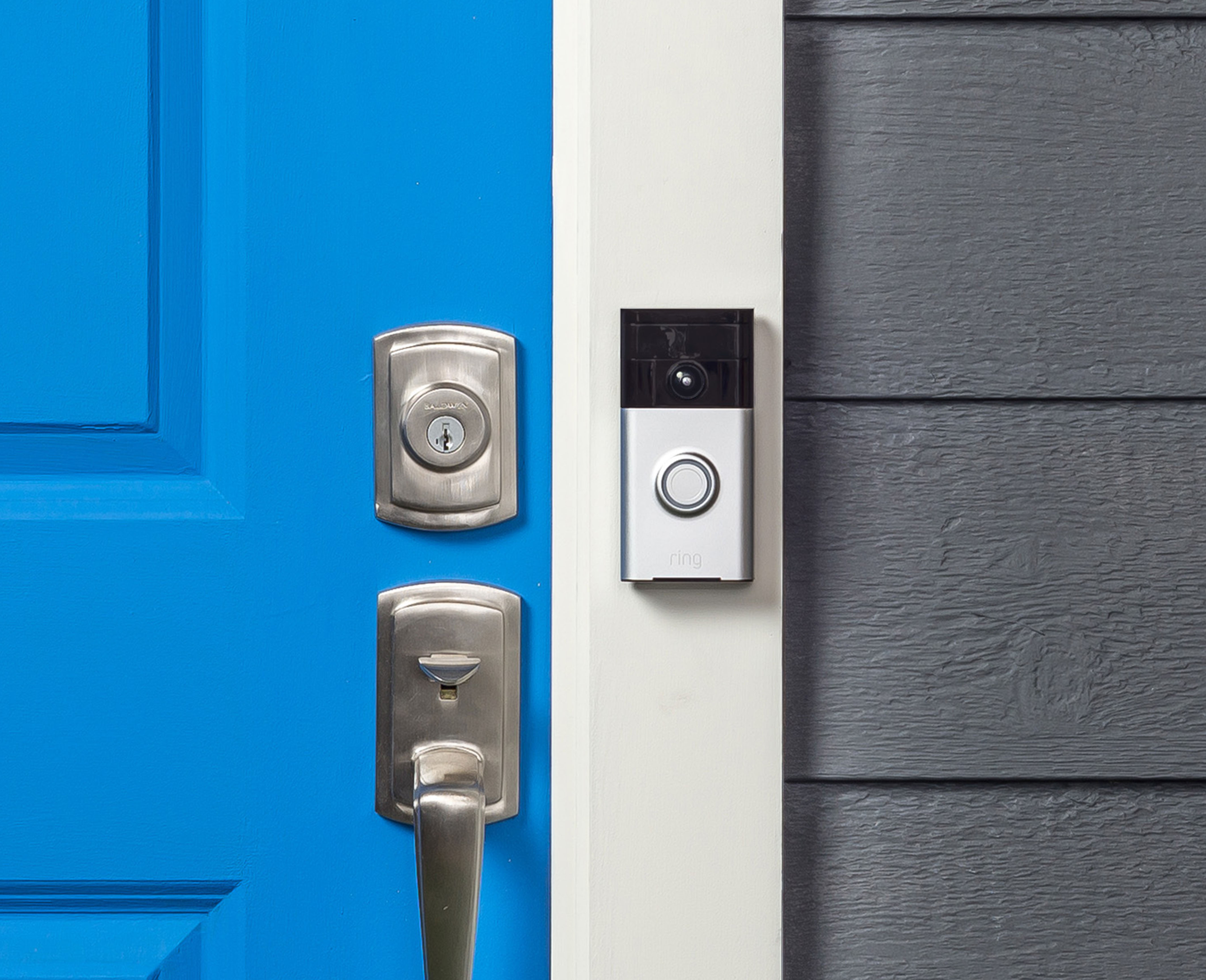
A driveway may be inside your camera’s view even if you only want notifications about the front step. Some doorbells let you limit the area that triggers a motion alert. Others let you mask part of the image. Read the definitions for your exact model before relying on a zone.

Decide what should be visible at all
Open the live view and check its corners. If an adjacent doorway or window appears, start with a physical adjustment to the angle if the mount allows it. A model with a privacy mask may let you cover part of the frame. Ring’s privacy-zone documentation explains how this works on supported devices. Check the equivalent documentation for your own model, including how settings affect live view and saved clips.
Set motion alerts for the space you need
A motion zone can reduce alerts from a busy sidewalk or passing vehicles. It may leave the rest of the scene visible in a recording. Confirm how your model handles what triggers a clip, what gets recorded and what appears in a notification preview. You may need to set those behaviors separately.
Test the result from the viewer’s side
Have a household member approach the door and check the live view, saved clip and notification. Repeat once after dark. Recheck after moving the mount or replacing the device, since the zone may no longer cover the area you intended.